Google Calendar
Google LLCProductivity
4.699.57K Reviews
- Version
- Varies With Device
- Installs
- 10.00B
- Age Rating
- Everyone
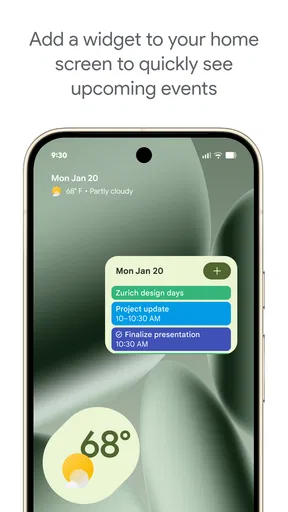
Screenshots
Our Review of Google Calendar
 Analysis by Appyee
I used to treat my calendar as a place to record appointments after they were agreed, not as a tool for deciding whether I could take something on. That meant checking messages, trying to remember what I had already promised, and occasionally discovering a clash too late. Google Calendar is useful because it brings those scattered commitments into one view and makes the routine act of checking my day quicker. It is not a substitute for clear planning, but it can reduce the small bits of friction that make a busy week feel harder than it is.
Where the time savings begin
As a free productivity app from Google LLC, Google Calendar is an obvious fit if you already use a Google account and want a schedule that works across everyday commitments. Its appeal is less about a dramatic new way to manage time and more about having one reliable place to check before saying yes. With an average rating of 4.7 from around 4.6 million ratings and over 5 billion installs, it is also a familiar choice rather than a niche planner. It is rated for Everyone and has been available since October 17, 2012.
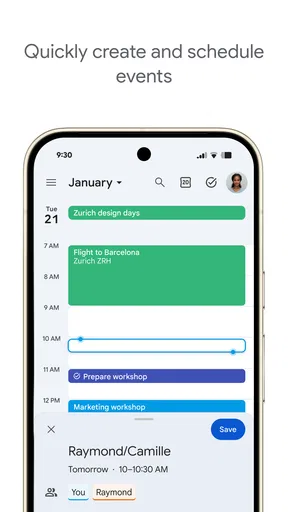
The practical test for any calendar is whether it saves more effort than it asks of you. I find this one works best when I put events in as soon as they are agreed, give them clear names, and use reminders for the things that are easy to overlook. If I leave entries until later, the app cannot fix the gaps in my routine. If I keep it current, a quick glance can replace several rounds of checking email or asking myself what I might have forgotten.
Getting Started: First Impressions
When you first open Google Calendar, you’re greeted with a clean and intuitive interface. Google’s design team definitely deserves a pat on the back for this one. It’s simple, yet packed with features, making it easy for even the most tech-phobic among us to navigate.
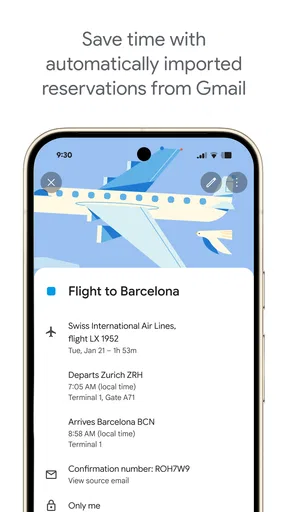
Setting up your calendar is a breeze. You can sync it with your Gmail account, which means all those important emails about meetings and events automatically pop up in your schedule. No more fumbling around trying to remember if that meeting was on Tuesday or Thursday—Google’s got your back.
Make the first week useful
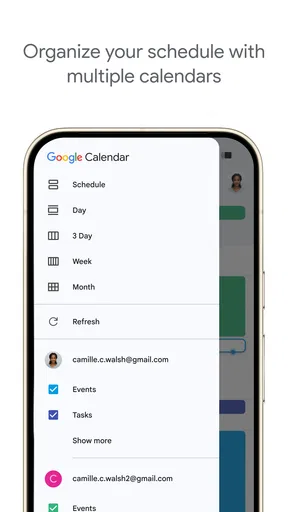
I would start by adding only the commitments that genuinely shape the week: fixed appointments, work hours, classes, and recurring responsibilities. That gives the calendar a useful outline without turning setup into a project. Then I’d add personal plans in a separate calendar if I want to see them alongside work while retaining the option to hide one group of events when I need a cleaner view.
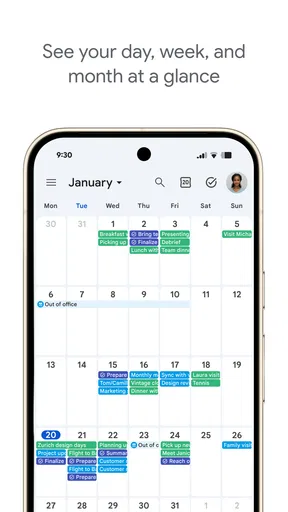
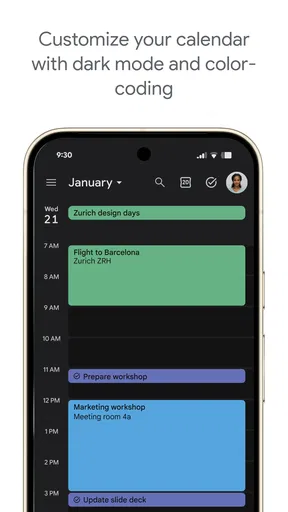
Color is helpful when it signals a real distinction, such as work versus family plans. It becomes decoration if every event has its own shade and I have to remember what each one means. I’d keep the system simple enough to interpret at a glance, then check the day and week views before relying on it for a tightly packed schedule. That small habit catches double bookings while there is still time to move something.
One useful question is whether an event belongs on a calendar or in a task list. I use a calendar entry when a commitment has a time, a place, or a block of attention attached to it. A loose intention such as “look into a new course” can be harder to manage as an appointment unless I have chosen a time to do it. That distinction keeps the schedule from becoming a long list of wishes that makes the day look impossible.
Features That Make Life Easier
One of my favorite features is the "Goals" option. Want to start a new habit? Maybe you’re looking to exercise more or practice a new language. Just set a goal, and Google Calendar will find the best time slots for you. It’s like having a motivational coach who doesn’t charge by the hour.
Another gem is the "Reminders" feature. Whether it’s a doctor’s appointment or a reminder to water your plants, you can set it and forget it. The app will nudge you at just the right time, so you can keep your life running smoothly without relying on your (sometimes faulty) memory.
A day that benefits from one shared view
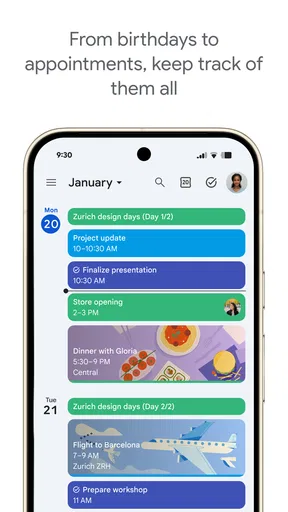
Here is the kind of ordinary day where I notice the difference: I have a morning appointment, a work call after lunch, and need to collect a package before a shop closes. I can put the fixed appointments in first, then add the collection as a timed block rather than trusting myself to remember it between meetings. When plans shift, I can move the block and see whether it now conflicts with the call. The benefit is not that the app makes the day less busy; it makes the trade-off visible before I commit.
For recurring routines, I would use repeat settings only when the pattern is genuinely stable. A weekly class or regular check-in belongs in a repeating event, but an appointment that changes often can make a recurring series messy if individual dates are repeatedly moved. In that case, separate entries may take a little longer to create but are easier to understand later. This is a small setup choice with a real effect on how trustworthy the calendar feels after several weeks.
Team Player: Integration and Collaboration
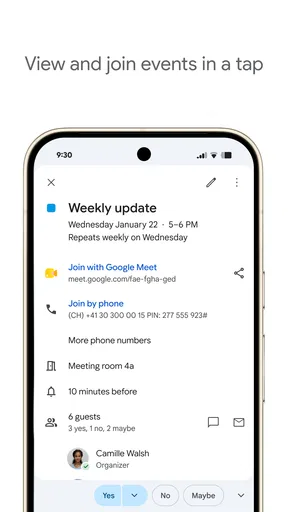
If you work with a team, you’ll love how easily Google Calendar integrates with other Google services like Google Meet and Google Drive. Scheduling a video call or sharing a document is just a few taps away. Plus, you can effortlessly share your calendar with colleagues, so everyone’s on the same page. No more back-and-forth emails about meeting times—hallelujah!
For those of us juggling multiple calendars (work, personal, side hustle), Google Calendar rises to the occasion. You can view them all in one place, beautifully color-coded, so you know exactly what’s happening at a glance. It’s like magic, but without the wand.
Sharing without oversharing
Calendar sharing is most helpful when other people need to coordinate with me, but I would decide carefully what they actually need to see. A colleague who only needs to know when I am unavailable may not need details about personal plans. Keeping separate calendars makes it easier to show availability while limiting what appears in a shared view. I would check the sharing choice before sending access, especially when the calendar mixes private and professional commitments.
This is also where Google Calendar differs from a paper diary or a basic offline calendar. A paper planner is flexible, private, and pleasant for sketching a day, but it cannot automatically keep a group looking at the same schedule. A simple calendar app may suit someone who wants only local entries and no connected services. Google’s advantage is strongest for people who already coordinate through Google tools; if collaboration is irrelevant, that ecosystem convenience may matter much less.
Small Details, Big Impact
Let’s talk about those tiny details that make a big difference. The app’s ability to suggest locations and times based on your past activity is a lifesaver. Plus, smart notifications keep you one step ahead, alerting you about traffic conditions or reminding you to leave earlier. It’s as if Google Calendar knows you better than you know yourself!
And for those moments when you’re offline, no worries. You can still view your schedule and make changes, which will sync up once you’re back online. It’s like Google Calendar never leaves your side, even when you’re off the grid.
Notifications and the cost of convenience
Notifications are useful only when they arrive at a moment I can act on. I prefer to reserve alerts for events that need preparation or have a real consequence if I miss them, rather than letting every entry interrupt the day. Too many pings become background noise, and then the important reminder is easier to ignore. I also treat travel-related prompts as helpful cues, not a guarantee that I have allowed enough time; traffic and route conditions can change, so I still use my judgement.
Offline access is reassuring for checking or adjusting a schedule when a connection is unavailable, but I would not assume that a change has reached everyone else until the device is back online. When coordination matters, I check again after reconnecting. That is a sensible limitation of relying on a connected calendar: local access helps, while shared updates depend on syncing.
Who should choose it—and who might not
I’d recommend it to students balancing classes and deadlines, households coordinating appointments, and professionals who want work and personal plans visible together. It is especially convenient if Gmail and other Google services are already part of the day, because events and collaboration fit naturally into that routine. The app is free, so it is easy to try without first deciding whether a calendar subscription is worth paying for.
I would look elsewhere if I wanted a highly customized project planner, a task manager built around complex dependencies, or a private paper-like space that stays separate from an online account. A calendar is good at answering “when?”; it is not, by itself, a complete system for deciding every priority or tracking detailed project work. Someone who dislikes connected services may prefer a simpler offline option, while a team that needs specialized planning workflows may need a dedicated work tool.
For a new user, the key questions are practical: can I see my appointments in more than one calendar, can I change an event when plans move, and will reminders help without taking over my phone? Multiple calendars can be viewed together, and entries can be adjusted; reminder usefulness depends on choosing sensible alerts and keeping the schedule accurate. I would begin with a few important events, test the view and notification habits for a week, and add complexity only when a real need appears.
Final Thoughts: Is It Worth It?
In a world where time is money, Google Calendar is a free tool that feels like a luxury. It streamlines your schedule and keeps you organized, all while being incredibly user-friendly. Whether you’re a student, a busy professional, or just someone trying to keep track of life’s chaos, this app is a must-have.
So, if you haven’t yet jumped on the Google Calendar bandwagon, what are you waiting for? It’s like having a personal assistant who’s always on time and never complains. Trust me, your future self will thank you.
Privacy and Permissions
See what permissions an app requests and how it handles your data.
- Identity
- find accounts on the device, add or remove accounts
- Calendar
- read calendar events plus confidential information, add or modify calendar events and send email to guests without owners' knowledge
- Contacts
- find accounts on the device, read your contacts
- Location
- approximate location (network-based)
- Phone
- directly call phone numbers
- Photos/Media/Files
- read the contents of your USB storage, modify or delete the contents of your USB storage
- Storage
- read the contents of your USB storage, modify or delete the contents of your USB storage
- Microphone
- record audio
- Other
- view network connections, pair with Bluetooth devices, access Bluetooth settings, measure app storage space, full network access, read sync settings, run at startup, reorder running apps, use accounts on the device, control vibration, prevent device from sleeping, toggle sync on and off, read Google service configuration
How Google Calendar Compares
Full ComparisonChoose Google Calendar for cross-service scheduling, Samsung Calendar for a color-coded planner on Samsung devices, or Outlook for combining email, calendars, and Microsoft tools.
| App | Developer | Rating | Price |
|---|---|---|---|
 Google CalendarThis App | Google LLC | 4.6 | Free |
 Samsung Calendar | Samsung Electronics Co., Ltd. | 4.1 | Free |
 Microsoft Outlook | Microsoft Corporation | 4.3 | Free |
Verdict
Strengths of Google Calendar
- User-friendly interface for easy navigation.
- Seamless integration with other Google services.
- Customizable reminders enhance productivity.
- Supports multiple calendar views and sharing.
- Offline access available for convenience.
Limitations of Google Calendar
- Limited color options for event categorization.
- No native task management integration.
- Requires internet for some features.
- Notifications can sometimes be delayed.
- Manual sync needed for third-party calendars.
Other Releases by Google LLC
View All
Google Messages
Communication4.6

Tools4.0

Google TV
Video Players & Editors3.9

Android Auto
Auto & Vehicles4.1
Similar Picks in This Category
View All
Google Drive
Google LLC4.3

Google Assistant
Google LLC3.9

Microsoft OneDrive
Microsoft Corporation4.6

Samsung Calendar
Samsung Electronics Co., Ltd.4.1

Microsoft OneNote: Save Notes
Microsoft Corporation4.6

HP Print Service Plugin
HP Inc.4.1
You May Also Like
View All

Frequently Asked Questions
How can I sync Google Calendar across all my devices?
To sync Google Calendar across devices, ensure you are signed in with the same Google account on each device. Enable calendar sync in your device settings. On Android, go to Settings > Accounts > Google > Account sync. On iOS, use the Google Calendar app or sync through the built-in calendar app by adding your Google account.
Can I share my Google Calendar with others?
Yes, Google Calendar allows you to share your calendar with others. Open Google Calendar, select the calendar you want to share, and click on 'Settings and sharing.' You can choose to share with specific people by entering their email addresses or make it public for broader access. Adjust permissions to control what others can see or edit.
Is Google Calendar available offline?
Google Calendar has an offline feature, but it requires the Google Calendar app. Once enabled, you can view events and check your schedule without an internet connection. However, you'll need to reconnect to the internet to make changes or add new events. This feature is handy for maintaining productivity on the go.
How do I set reminders in Google Calendar?
To set a reminder in Google Calendar, click on the '+' button to create a new event. Choose 'Reminder' instead of 'Event.' Set the date and time, and add any necessary details. You can also set recurring reminders for daily, weekly, or custom intervals to keep track of important tasks.
What integrations are available with Google Calendar?
Google Calendar integrates with numerous apps and services such as Google Meet, Zoom, and Slack, enhancing productivity. It also syncs with smart assistants like Google Assistant and Alexa for voice-controlled scheduling. Explore the Google Workspace Marketplace for additional third-party integrations to tailor the calendar experience to your needs.
